AR Payment Register
Create a report to view all Accounts Receivable payments received for a specific Financial period or date.
| Access |
| Grant permission to User Profiles in Access User Profiles > select a User Profile > Menu Security > Reports > Main Menu > Accounting. |
| Grant permission to the individual report> Accounting > AR Payment Register. |
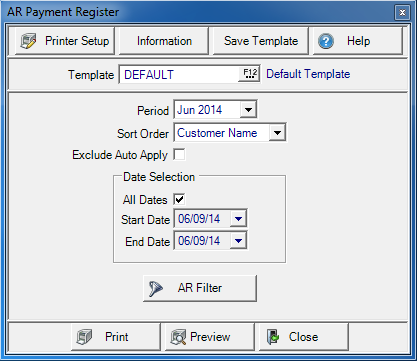
Create Your Report
Select any Financial Period using the drop down list.
Sort Order- Select
- Customer Name- Sort by alphabetically order.
- TTR- Transaction Tracking Reference, sort by numerical order.
Choose Exclude Auto Apply to exclude customers set to automatically apply payments.
In Date Selection select what dates to use for the report. Retain the default of All Dates or create a date range.
- Start Date- Enter a Start Date of the date range
- End Date- Enter the End Date
Apply a Customer AR Filter filter to limit the customers included. See Using a Customer Filter for more information.
Select Preview to view the report onscreen.
Select Print to send the report directly to the default printer.
 View a sample report here.
Understanding Your Report
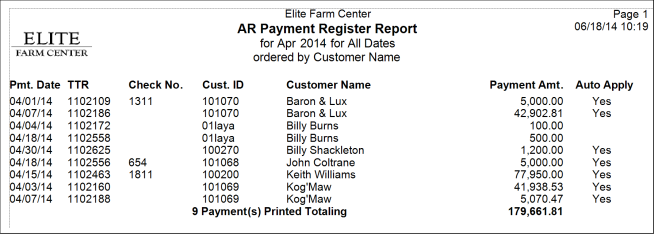
Pmt. Date displays the Payment Date.
Use the TTR- Transaction Tracking Reference, column to view the TTR number assigned to the transaction.
If payment was entered as a Check, the Check No. is included.
Cust. ID the Customer ID number and Customer Name are displayed.
Payment Amt. indicates the amount of the payment received.
If the payment was auto-applied, Yes will appear in the Auto Apply column. If not, this field is blank.
The Report Total counts the number of payments and totals the Payment Amount column.